Step 3: The settings tabs — OpenAI / ChatGPT Shopping
Installation and User Guide
OpenAI / ChatGPT Shopping – Product Feed
Product feed for ChatGPT shopping: build, deliver, check
Step 3: The settings tabs
The settings hold everything the wizard sets, and more. Use them for a manual setup and for every change later.
The page
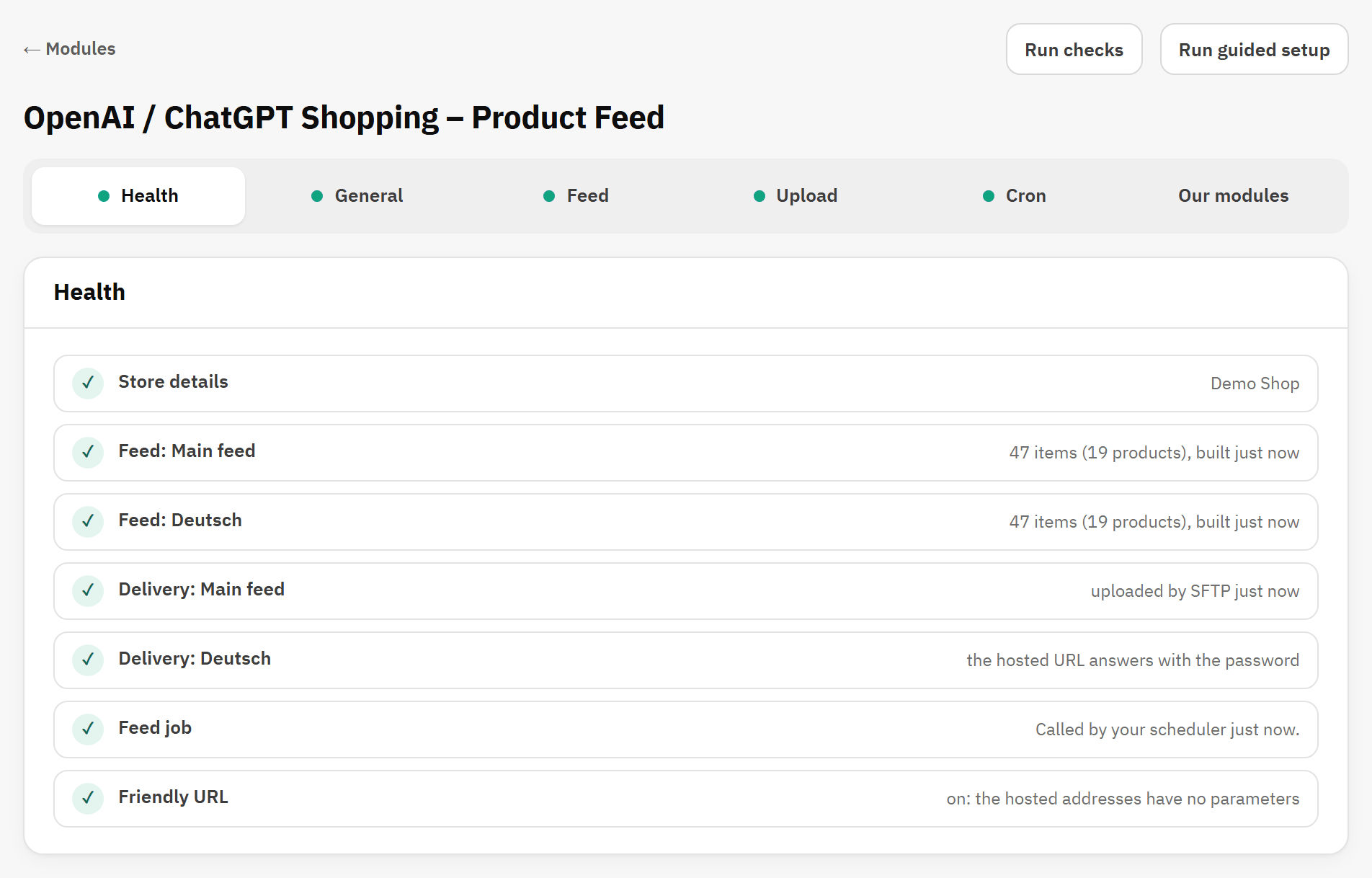
Six tabs: Health, General, Feed, Upload, Cron and Our modules. The dot on a tab is green when all is well, and amber when something needs you. Our modules has no dot.
Run checks refreshes the checks. Run guided setup opens the wizard. The rows work as in the wizard (see How every row works).
Health
The Health tab with every line ticked.
The tabs, each with its dot.
Run checks refreshes every line.
The check lines.
Line
What it checks
Store details
The seller name and the return policy are set.
Feed: and the feed’s name, one line per active feed
The last build and how many items it wrote. A warning when products were left out for a missing value.
Delivery: and the feed’s name, one line per active feed
The SFTP login and the last upload, the hosted URL answering with the file, or download only.
Feed job
When your scheduler last called the job: ✓ within 26 hours, a warning when it is older, × when never.
Friendly URL
Shown when a feed is hosted. It must be on: OpenAI refuses an address with parameters.
SFTP account
Shown when two feeds share one SFTP account, which only an upgrade from 1.2 can leave.
✓ means all is well, ! is a warning and × an error. Each line that is not ticked has Fix →. Checks that never ran start by themselves when the tab opens.
General
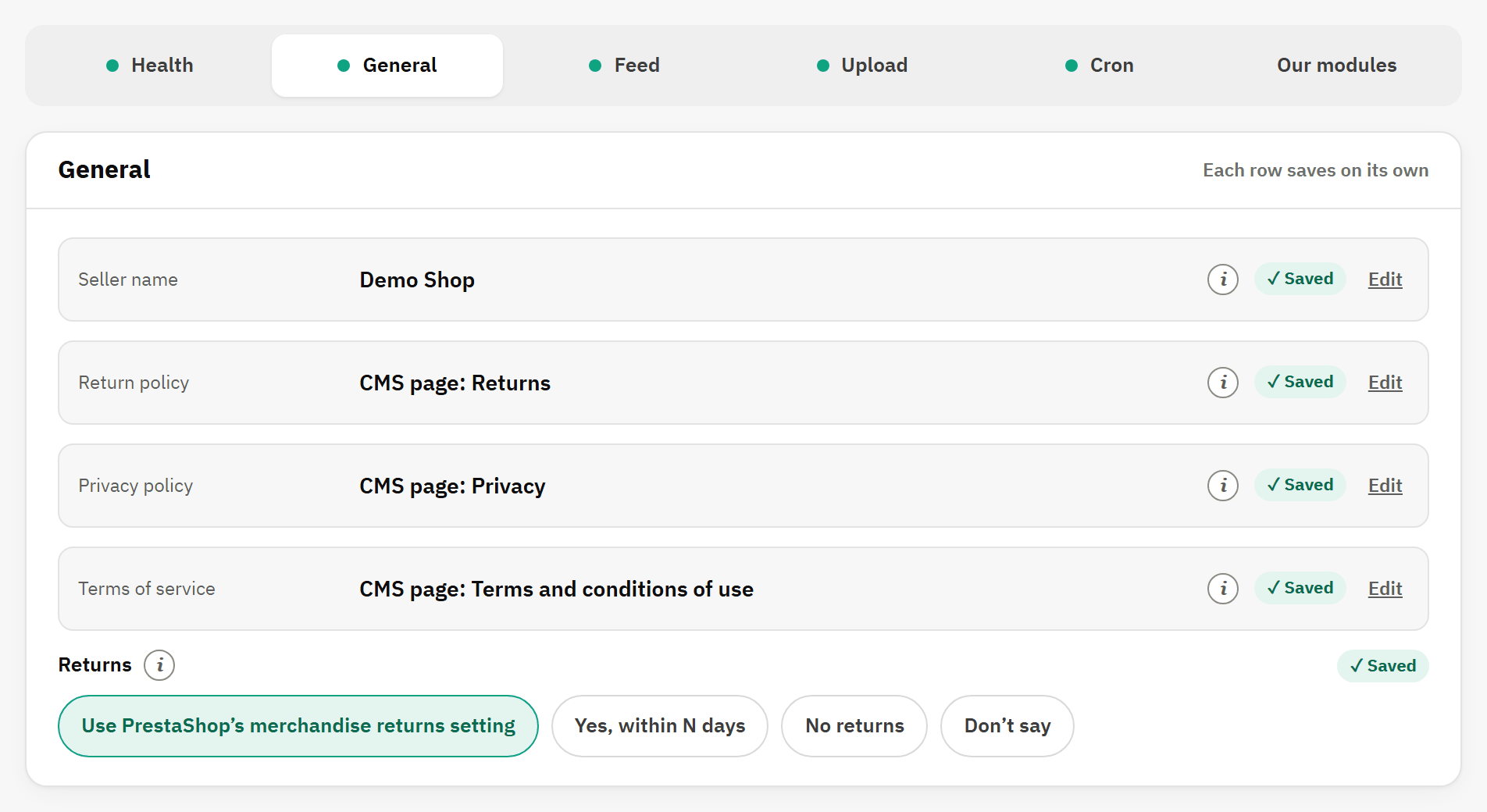
The General tab.
Seller name.
Return policy: a CMS page or an address.
Returns: what the feed says about returns.
The rows of wizard step 1 (see Step 1 of 5: Your store). They apply to every feed of the shop. A feed can have its own return policy and return window: see Advanced settings.
Feed
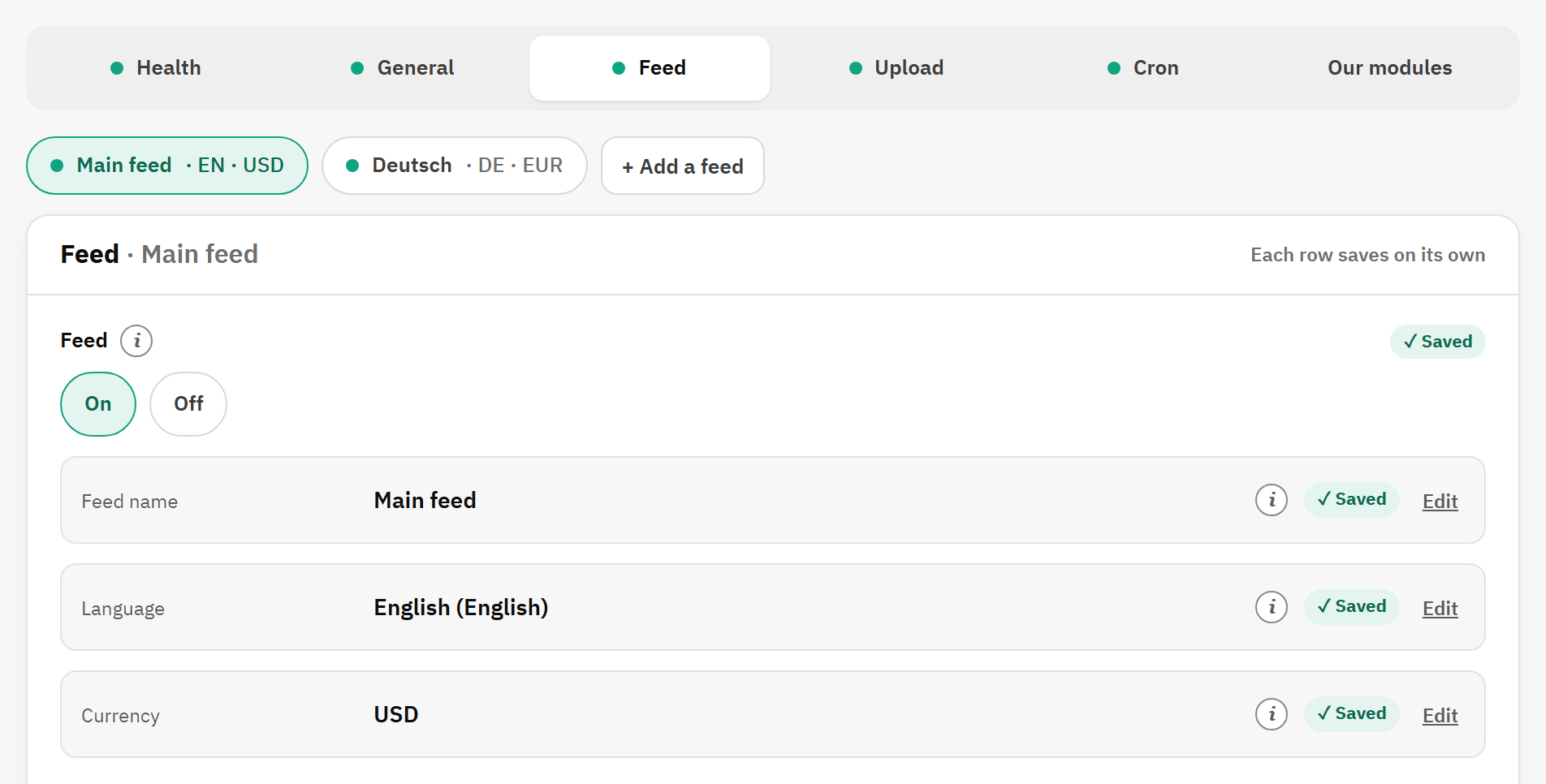
The top of the Feed tab.
The feed switcher: one chip per feed, with its language and currency.
Click a chip to open that feed. Its dot is green when the feed is built and delivered, amber when something is missing, and grey when the feed is off.
Row
What it does
Feed
On or Off. Off stops the feed without losing its settings: the job skips it, and the file it uploaded by SFTP is deleted, so that OpenAI stops reading it.
Feed name
Your name for the feed, in the switcher, the checks and the build log. OpenAI never sees it.
With Feed setup on Advanced, the tab adds headed sections. Their values apply only while Advanced is chosen; switching back to Simple keeps them.
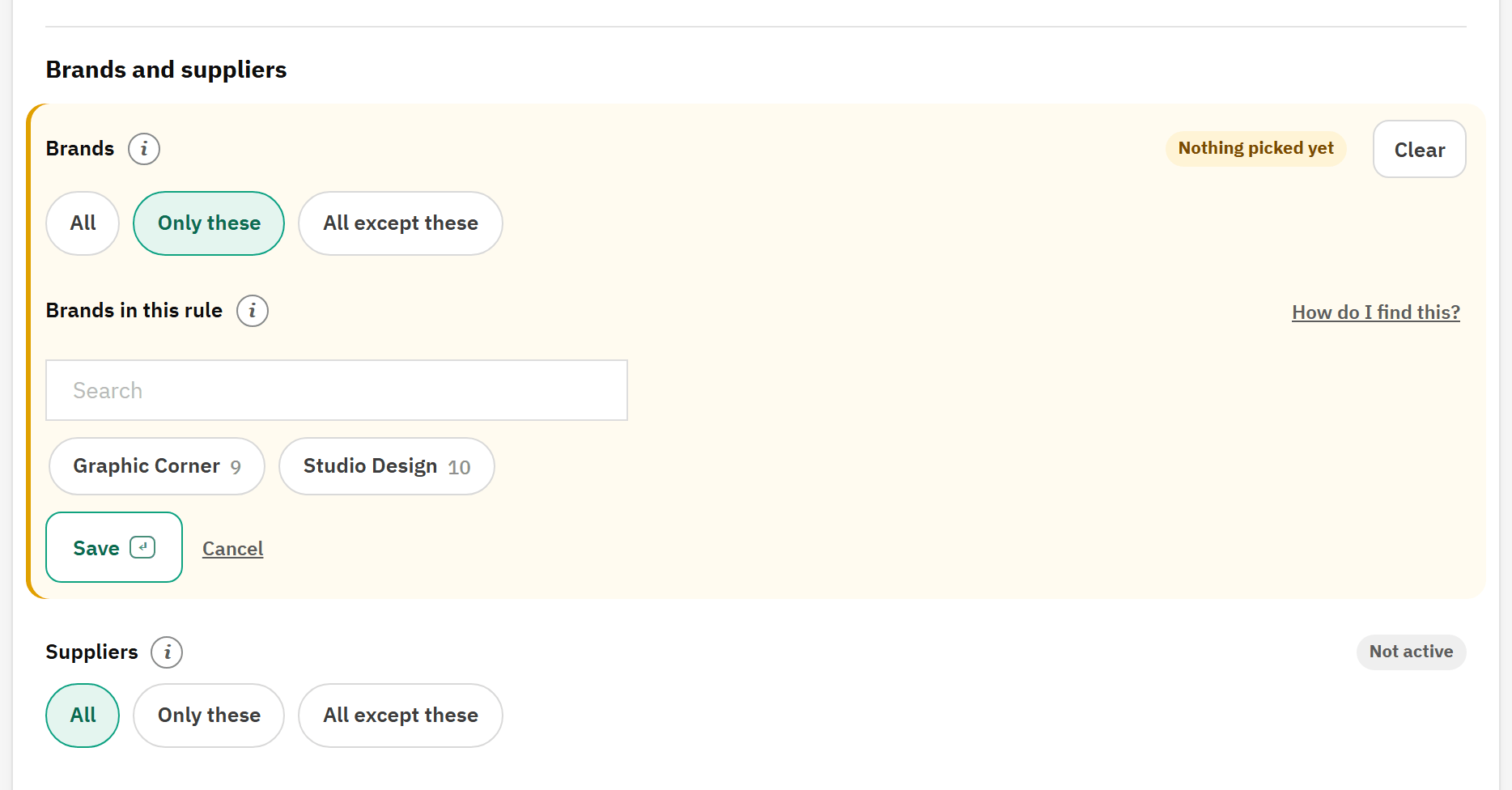
A filter shows whether it applies: Not active when it limits nothing, Active when it narrows the feed, and Nothing picked yet when you chose Only these without picking anything, which limits nothing. A rule that leaves items out shows Excludes with their number. Clear puts a rule back to no limit.
Brands and suppliers, with Only these chosen and the list open.
Only these: the list opens at once.
The list: click names to pick them. The number is the products of each.
The status of the rule.
Brands and suppliers
Row
What it does
Brands, Suppliers
All (the default), Only these or All except these, with a list to pick from and a search box. A list with nothing ticked limits nothing.
Price, stock and discounts
Row
What it does
Price from, Price to
Items whose price in the feed is lower, or higher, are left out. The price is the one the feed shows: in its currency, after discounts, with or without tax as set under Prices.
Minimum stock
Items with fewer units in stock are left out. It counts per variant.
Discounted products
All (the default), Only discounted or Leave them out. Discounted means a price reduction applies right now.
More filters
Row
What it does
Product ID from, Product ID to
Products outside the range are left out.
Condition
Only products in the conditions you tick: New, Used, Refurbished. None ticked: every condition.
Only new products
Yes keeps only the products PrestaShop shows as new, for the number of days set in Shop Parameters › Product Settings.
Leave out products without a description
No (the default) sends such a product with its name as the description. Yes leaves it out.
Specific products
Row
What it does
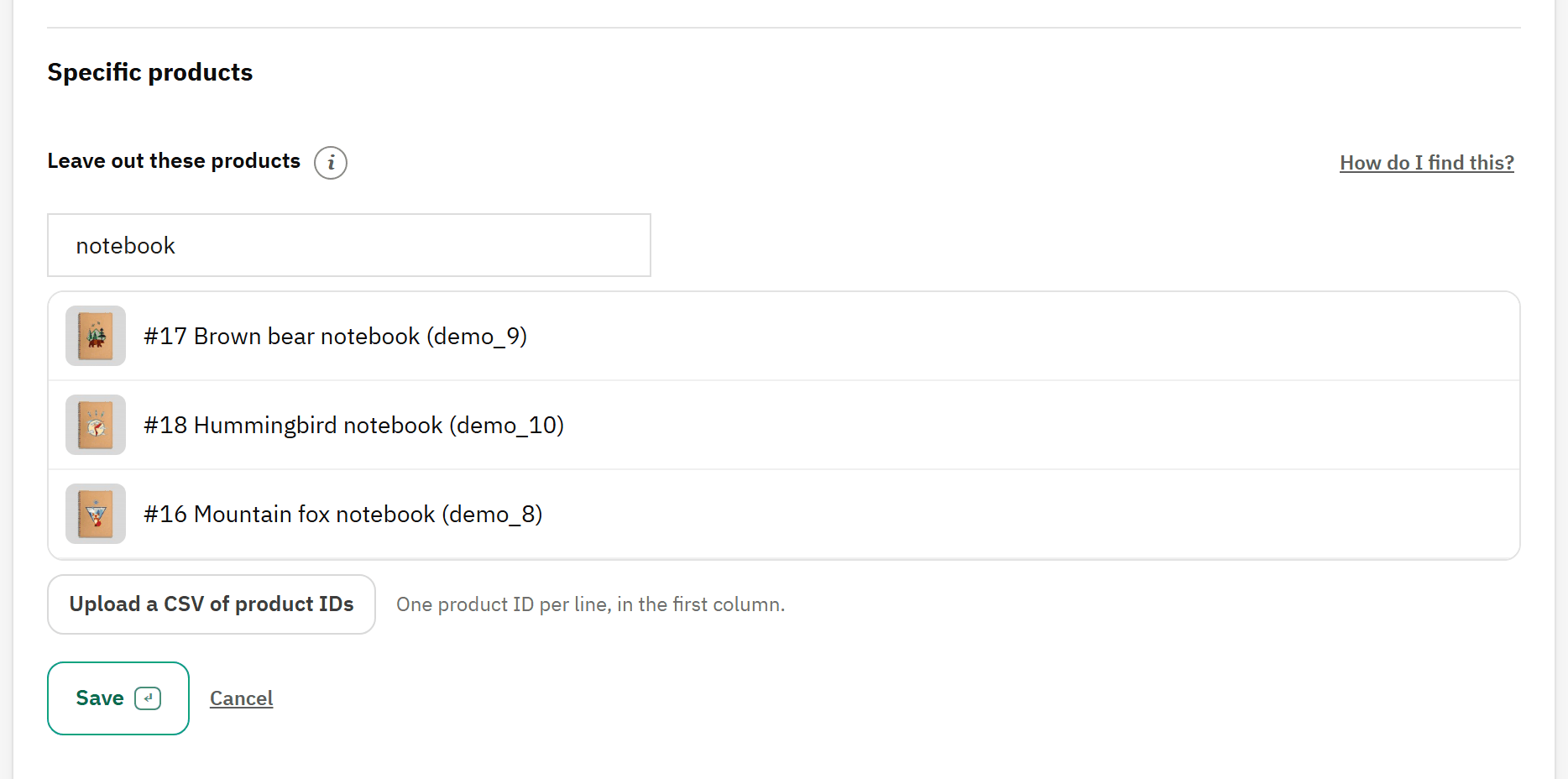
Leave out these products
Search by name, reference or ID and pick the products to keep out of the feed. Upload a CSV of product IDs adds many at once: one product ID per line, in the first column.
Leave out these products: search, results and the CSV upload.
The search box.
The results, with their pictures: click one to pick it.
Upload a CSV of product IDs.
Features and attributes
Row
What it does
Features
Filters products by feature values, such as Material: Cotton. All, Only these or All except these.
Attributes
Filters variants by attribute values, such as Color: Red. The same three choices.
Titles and descriptions
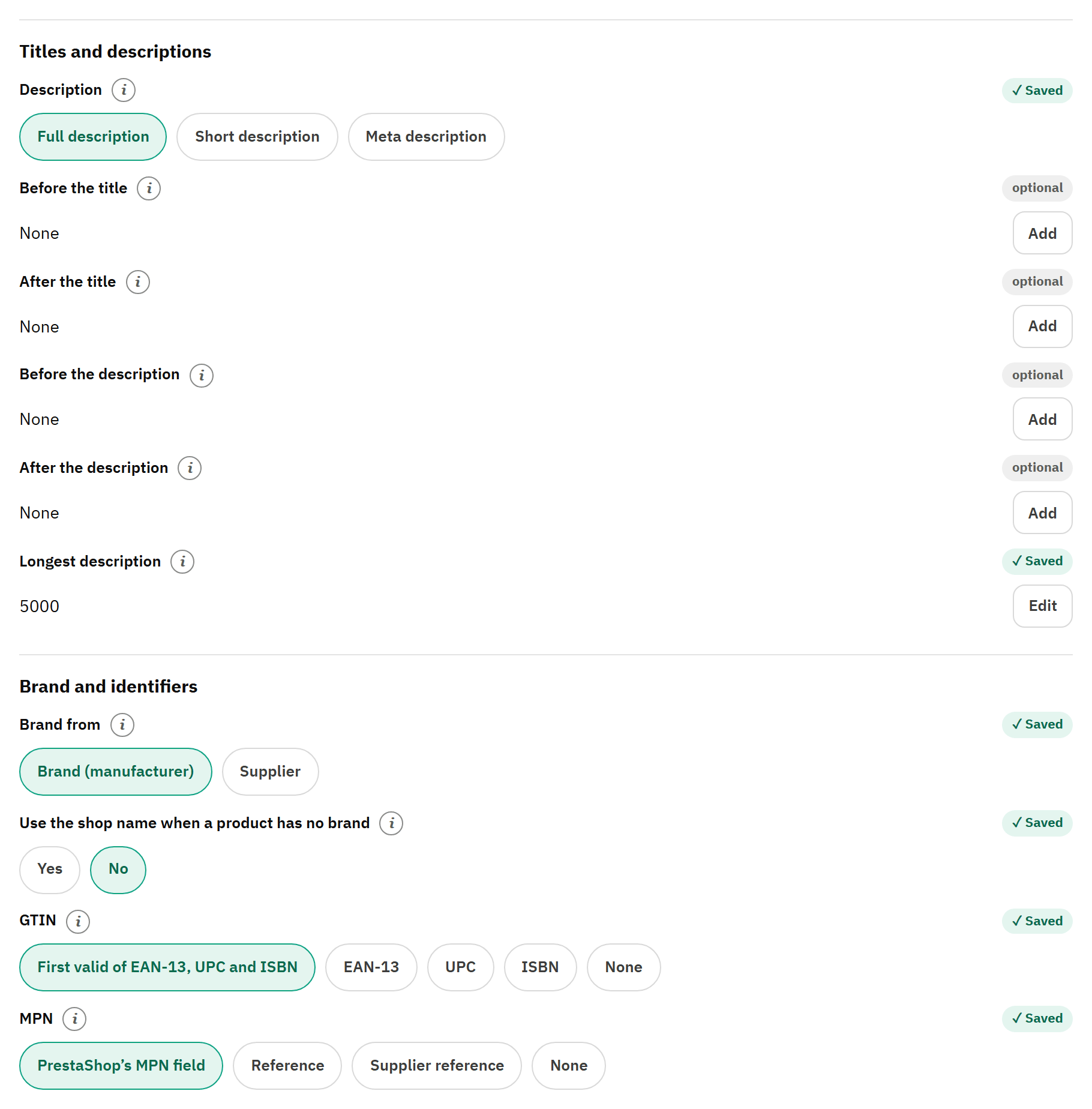
Titles and descriptions, then Brand and identifiers, at their defaults.
Description: which text leads.
Use the shop name when a product has no brand.
GTIN.
MPN.
Row
What it does
Description
Which text leads: Full description (the default), Short description or Meta description. The others are used when it is empty. Descriptions are sent as plain text.
Before the title, After the title
Text added to every title, such as your brand. The title is then cut at 150 characters.
Before the description, After the description
Text added to every description, such as a delivery promise.
Longest description
Descriptions are cut at this many characters: from 1 to 5000 (the default).
Brand and identifiers
Row
What it does
Brand from
Brand (manufacturer) (the default) or Supplier.
Use the shop name when a product has no brand
No (the default) leaves products without a brand out. Yes sends your seller name as their brand, which suits products of your own make.
GTIN
The barcode sent as gtin: First valid of EAN-13, UPC and ISBN (the default), one of them, or None. A code that is not valid is never sent. A variant sends its own code, never its product’s.
MPN
PrestaShop’s MPN field (the default; PrestaShop has it from version 1.7.7), Reference, Supplier reference or None.
Pictures, links and prices
Row
What it does
Picture size
The image size sent to OpenAI. Original size (the default) sends each picture as it was uploaded, the largest and sharpest.
Extra pictures
Yes (the default) also sends the other pictures of each item. The first picture is always the cover.
Link parameters
Added to every product link, such as utm_source=chatgpt. Join several with &, without the question mark.
Prices
With tax (the default): the price your customers pay, regular and sale. Or Without tax.
Variant details
Row
What it does
Colour from, Size from, Material from
The attribute groups that hold the colour, the size and the material of a variant. None ticked: the module guesses from the group’s name.
Only the default variant
Yes sends one variant per product: its default combination. No (the default) sends every variant.
Visibility and returns
Row
What it does
Show these products in ChatGPT search
Yes (the default). No, remove them at OpenAI marks every item as not eligible for ChatGPT search, and OpenAI removes them at its next processing. Use it to take a feed out of ChatGPT without deleting it.
Return window for this feed (days), Return policy for this feed, Privacy policy for this feed, Terms of service for this feed
For a feed in another language or for another market. Empty: the store’s, from the General tab.
Under the rows: count, list, downloads, builds
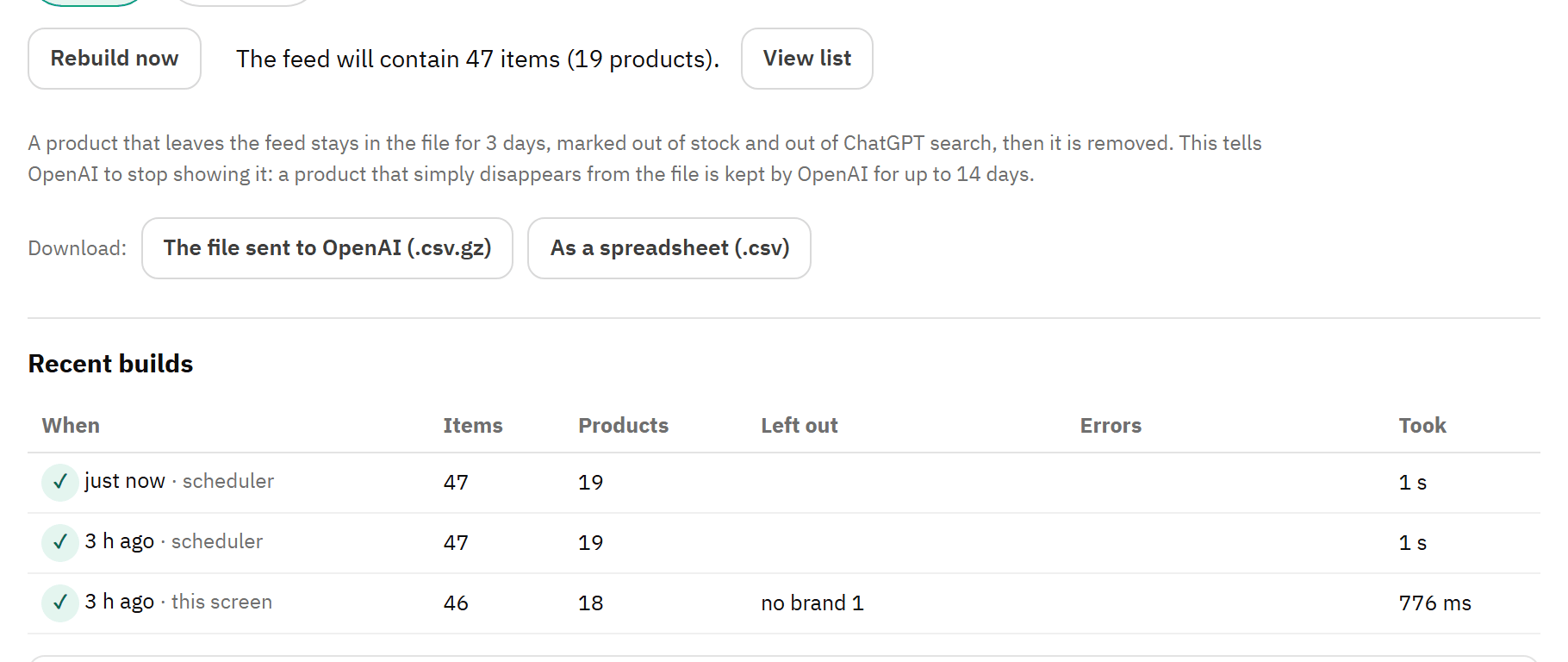
Under the rows of the main feed.
What the feed will contain: items and products.
View list.
What happens to a product that leaves the feed.
Download: the exact file, or a spreadsheet.
Recent builds: the last 10.
Rebuild now builds the feed at once, and delivers it.
“The feed will contain N items (M products).” comes from a dry run of the same code the build uses, so it matches the next build. On a large catalogue the last numbers show at once, marked (updating...), until the recount ends.
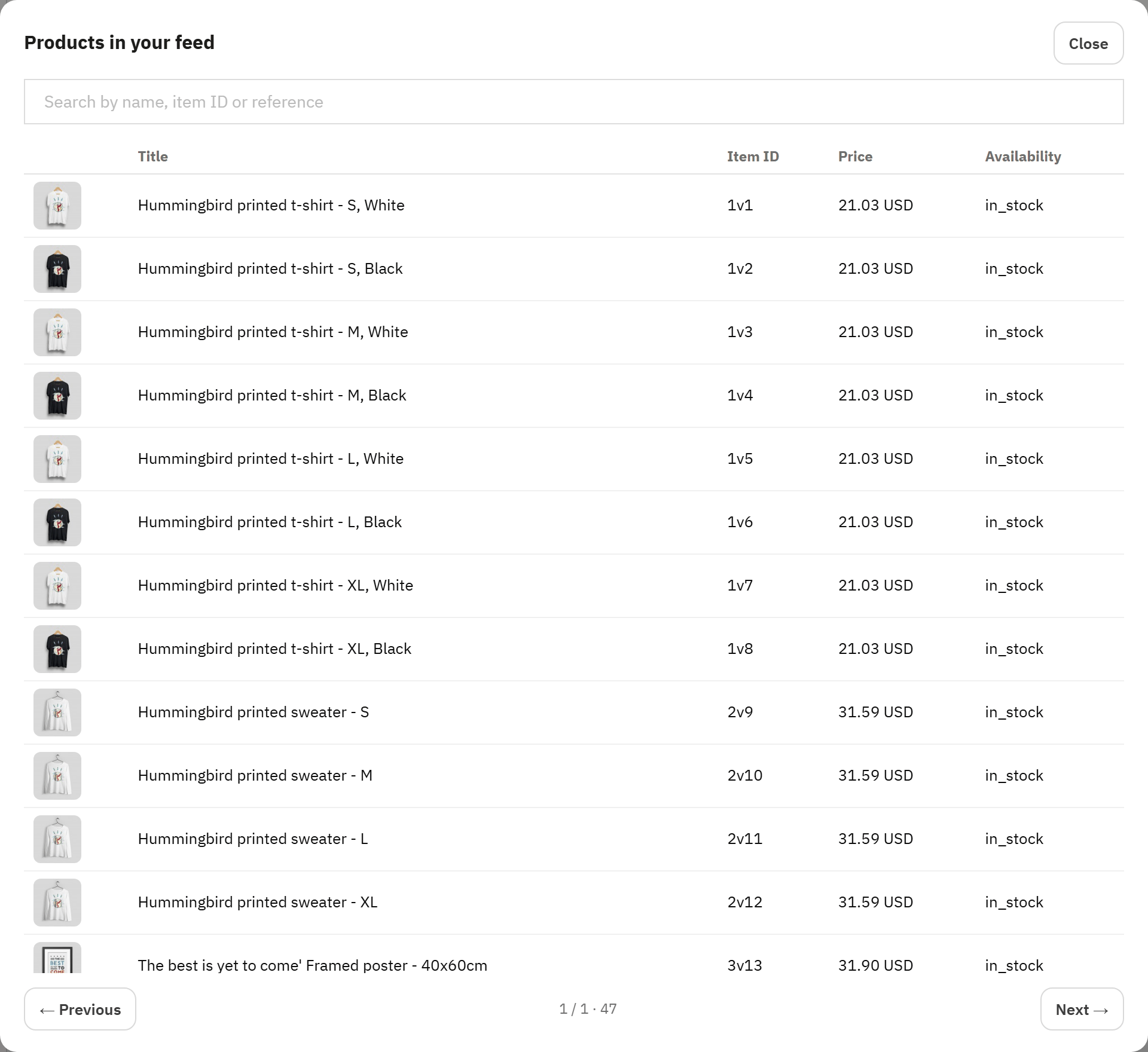
View list opens Products in your feed: 50 items per page, with picture, title, item ID, price and availability, and a search by name, item ID or reference.
The file sent to OpenAI (.csv.gz) is the exact file. As a spreadsheet (.csv) holds the same rows, ready to open in a spreadsheet.
Recent builds lists the last 10 builds: when, and whether the scheduler or this screen ran it, items, products, what was left out per reason, errors and how long it took.
Products in your feed: what the current settings send.
Search by name, item ID or reference.
Item ID: the product ID, and for a variant v and the combination ID.
Pages of 50 items.
Upload
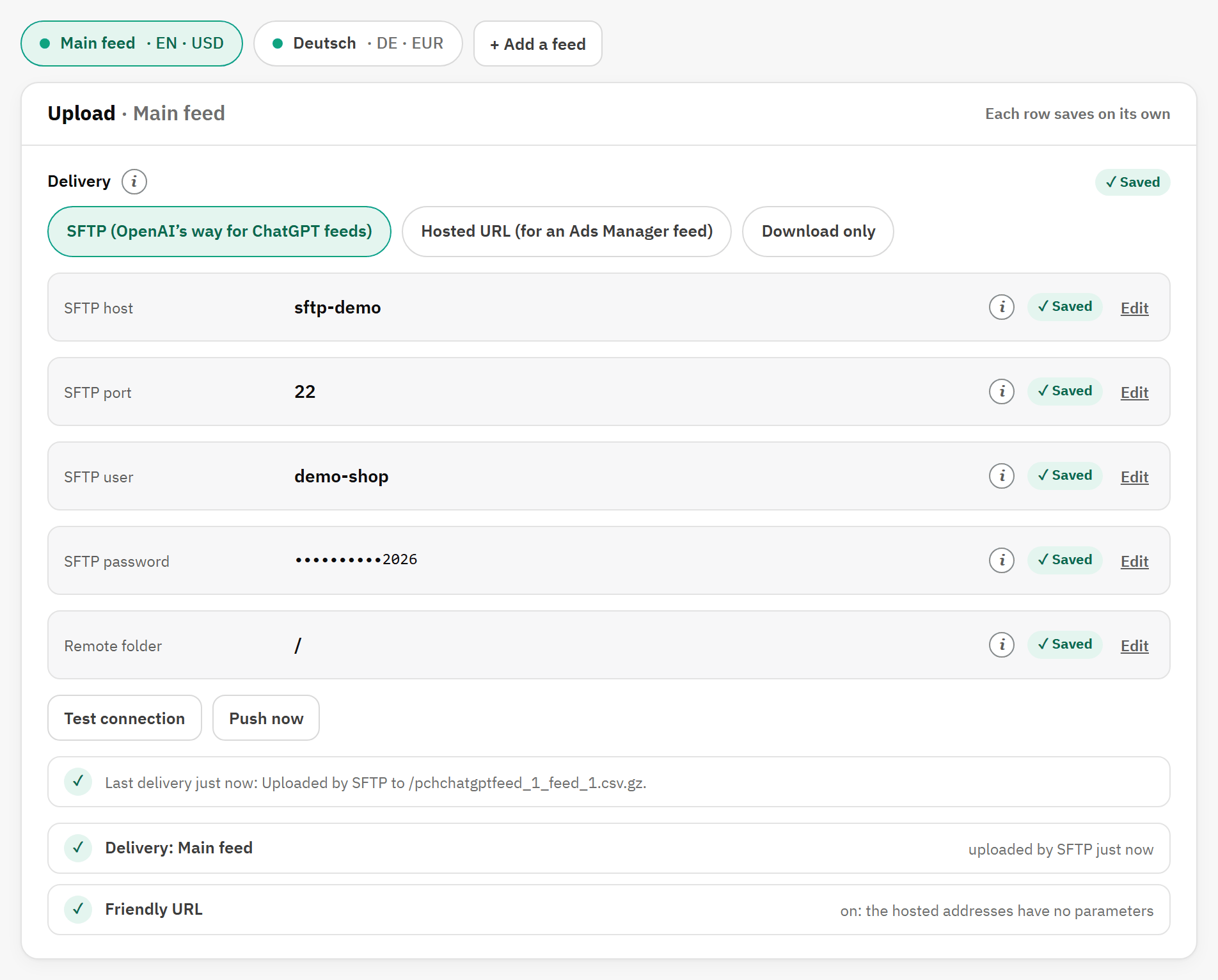
The feed switcher sits on this tab too: each feed has its own delivery. The rows are those of wizard step 3 (see Step 3 of 5: Delivery), plus Remote folder.
Upload for the main feed: SFTP at the root, the last delivery ticked.
Delivery: the method of this feed.
Remote folder: keep /.
Test connection and Push now.
The last delivery.
Row
What it does
Remote folder
Keep /. OpenAI processes every file in the root of the account; a file in a folder is not read. Change it only if OpenAI asks you to.
When the method is not SFTP, the SFTP rows are hidden but kept: “SFTP details are kept but not used.” Switching back needs no retyping.
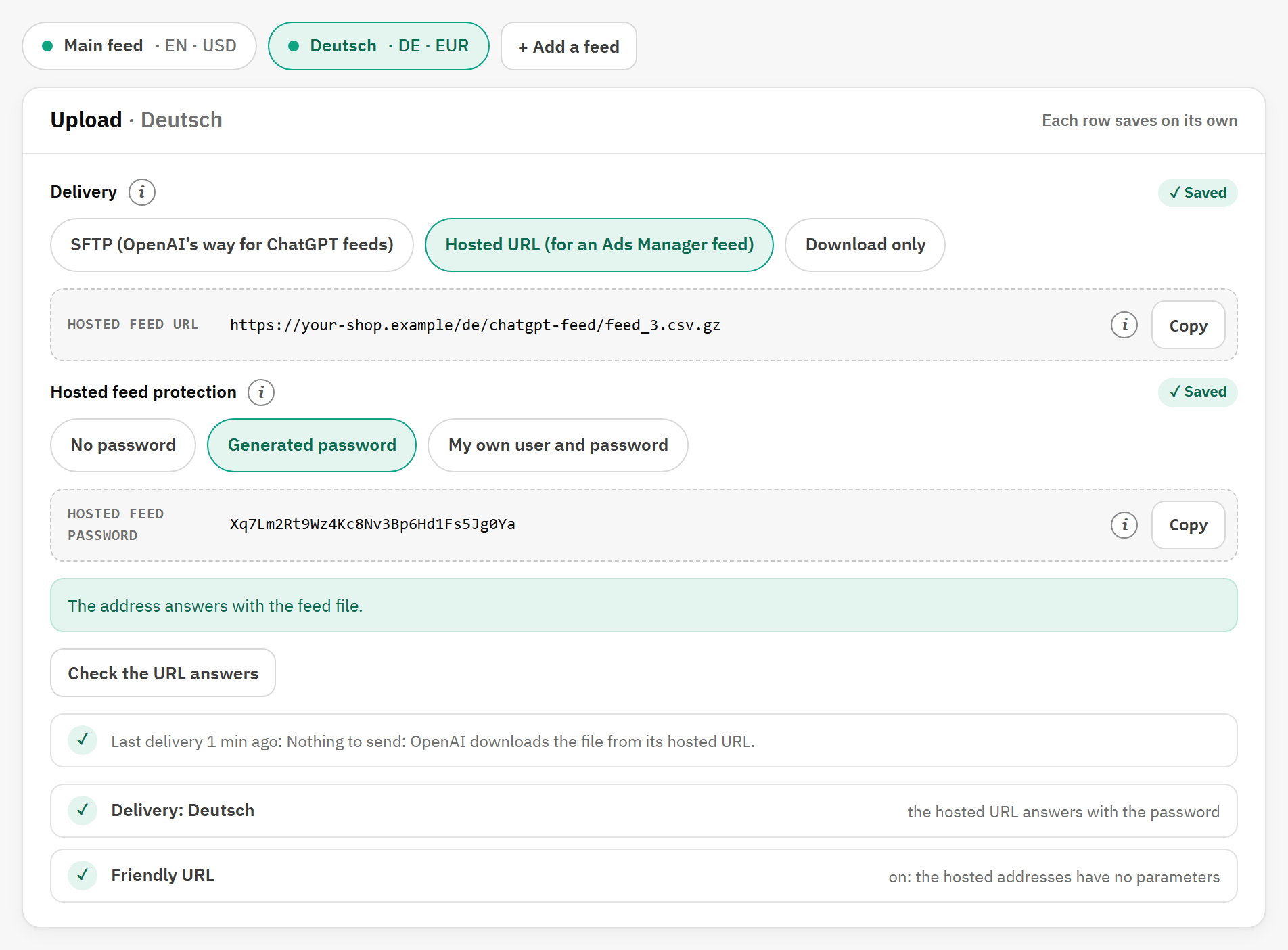
Upload for a second feed, delivered at its hosted URL.
Hosted feed URL, with Copy.
Hosted feed protection: one choice for every hosted feed of the shop.
The answer of Check the URL answers.
Row
What it does
Hosted feed URL
The address to paste in Ads Manager. It ends in /chatgpt-feed/<feed>.csv.gz and has no parameters, as OpenAI requires.
Hosted feed protection
No password (the default): anyone who has the address can download your catalogue. Generated password: the password shown below, with any user name. My own user and password: the pair you set in Hosted feed user and Your hosted feed password.
Hosted feed password
The generated password, with Copy. Enter it in Ads Manager with the address.
Cron
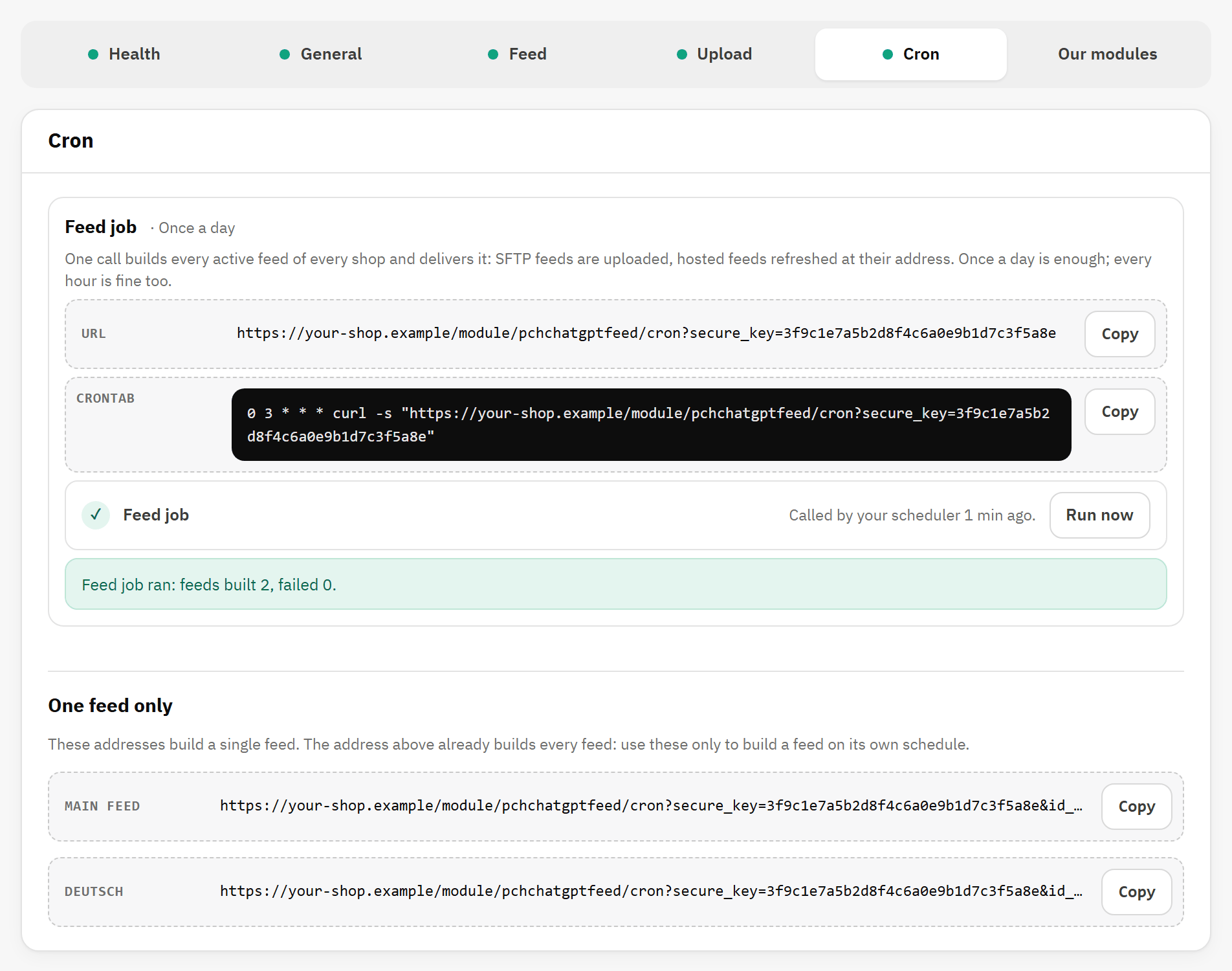
The Cron tab after Run now.
URL of the feed job, with Copy.
Crontab: the same call as a crontab line.
The status, and Run now.
One feed only: one address per feed.
The Feed job block is the one of wizard step 4. Run now builds and delivers every active feed of this shop and says how it went, for example “Feed job ran: feeds built 2, failed 0.” One feed only lists one address per feed, for a feed on its own schedule or a crontab from version 1.2. More in The feed job in detail.
Our modules
Other PrestaChamps modules that work on your PrestaShop version. Each card says whether your shop has the module: Installed (with Open the settings), Not enabled in this shop, or See on Addons, which opens the module’s page on PrestaShop Addons. The tab loads nothing from the internet and sends nothing to PrestaChamps.